Searching for Windows 11 Update Assistant or how to download Windows 11 Update Assistant? You’re not alone—many users (and even some forum posts) commonly call Microsoft’s official upgrade tool the “Windows 11 Update Assistant.” However, its official name is the Windows 11 Installation Assistant. This free Microsoft tool helps you upgrade your eligible PC to the latest Windows 11 version, bypassing the wait for automatic rollout via Windows Update. Now you can read further if you want to explore more.
As of December 2025, the current version is the Windows 11 2025 Update (Version 25H2). With Windows 10 support officially ended on October 14, 2025, upgrading to Windows 11 is essential for ongoing security updates and new features.
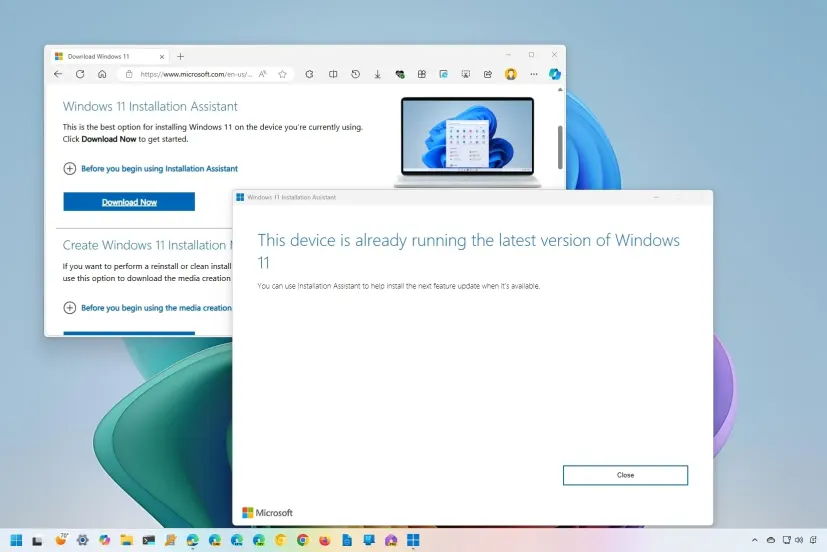
What is Windows 11 Update Assistant (Installation Assistant)?
The Windows 11 Update Assistant—officially known as the Windows 11 Installation Assistant—is Microsoft’s dedicated tool for performing an in-place upgrade to Windows 11. It’s perfect if:
- You’re still on Windows 10 (version 2004 or higher).
- The Windows 11 upgrade isn’t showing in your Windows Update settings yet.
- You want to force the upgrade to the latest version (25H2).
Key features:
- Checks your PC against Windows 11 system requirements (TPM 2.0, Secure Boot, supported processor).
- Downloads and installs Windows 11 while keeping your files, apps, and settings.
- Supports x64 processors only (not ARM-based PCs).
- Requires about 9 GB of free space and a stable internet connection.
Many users refer to it as “Update Assistant” due to its similarity to older Windows 10 tools, but Microsoft brands it as Installation Assistant.
How to Download and Use Windows 11 Update Assistant
Here’s a step-by-step guide to download Windows 11 Update Assistant (Installation Assistant) safely:
- Go to the official Microsoft Windows 11 download page: https://www.microsoft.com/en-us/software-download/windows11.
- Under the Windows 11 Installation Assistant section, click Download Now. This gets you the small executable (Windows11InstallationAssistant.exe, ~4-10 MB).
- Run the file as administrator.
- The tool checks compatibility—if issues arise, download the PC Health Check app for details.
- Accept the terms and proceed. It will download the full Windows 11 25H2 files.
- When ready, restart your PC to complete the installation (multiple restarts are normal).
The whole process takes 30-120 minutes, depending on your hardware.
Direct official link: Always use the main page above for the latest, but here’s the current assistant download redirect: Windows 11 Installation Assistant.
For the specific 25H2 version details: Windows 11 Installation Assistant 25H2.
Why Choose Windows 11 Update Assistant?
- Immediate access: No waiting for Microsoft’s phased rollout.
- Data-safe upgrade: In-place installation preserves everything.
- Official and secure: Direct from Microsoft—avoid third-party sites to prevent malware.
- Alternatives: Media Creation Tool for USB installs or ISO downloads from the same page.
If your PC isn’t compatible, explore hardware upgrades or paid Extended Security Updates for Windows 10.
Common Issues and Troubleshooting for Windows 11 Update Assistant
If you encounter problems while using the Windows 11 Update Assistant (Installation Assistant) during your upgrade to version 25H2, don’t worry—most issues have simple fixes. Common errors include “This PC doesn’t meet the minimum requirements” (often due to TPM 2.0 or Secure Boot not enabled—check in BIOS/UEFI settings), insufficient disk space (free up at least 20 GB to be safe), or download interruptions from unstable internet. Always run the tool as administrator and temporarily disable third-party antivirus software, as it can interfere with the process. If the assistant fails midway, restart your PC and try again, or use the alternative Media Creation Tool for a clean ISO download. For detailed error codes, visit Microsoft’s Windows release health dashboard. Back up your data first using OneDrive or external drives to avoid any rare data loss risks. Upgrading now ensures you get the latest security patches and features like improved Copilot integration and enhanced File Explorer in the December 2025 updates.
Conclusion
Whether you search for Windows 11 Update Assistant download or Windows 11 Installation Assistant, this tool is the fastest, safest way to get on Windows 11 25H2 in December 2025. Start your upgrade today!
Visit the official download page now.